
Subscription Widget Not Showing? Checklist and Placement (Essential Subscriptions app)
The subscription widget shows on your product pages once the app is set up. If it does not show, sits in the wrong place, or does not fit your theme, work through this page from the top.
Step 1: The three-point check
The widget only shows when all three are true.
- The app embed or an app block is on in your live theme. Open the app Home page. The App status card reads Active or Inactive. If it reads Inactive, click Activate, check that Essential Subscriptions is on under App embeds in the theme editor, then click Save in the theme editor.
- The campaign is published. Open Campaigns in the app menu. The badge next to the campaign must read Published. An Unpublished campaign never shows on your store.
- The product is in the campaign. Open the campaign, go to the Products tab, and check the product is listed. If you picked single variants, the widget only shows while one of those variants is selected.
Note: The App status check reads your live theme. If you switched the embed on in a draft or copied theme, the card still says Inactive and the widget does not show on your live store.
A published campaign also shows a warning at the top of the campaign editor while the app is off: Essential Subscription app is not activated yet. Click Activate there, then Save in the theme editor.
Step 2: Check where you are looking
The widget loads on product pages only. It does not show in:
- Quick view or quick add pop-ups on collection pages
- Featured product sections on your home page
In the theme editor, a product with no published campaign shows a grey box instead: Essential Subscriptions Widget, "Editor preview only (not visible in Live store)". This is normal.
Open the product's own page on your live store. Use a private window so you do not see a cached page.
Step 3: Choose how the widget is placed
There are three ways. Use one. Only one widget shows per product page, even if you use the embed and an app block together.
A. App embed (automatic)
With the app embed on, the widget places itself above the quantity selector or the buy buttons in your product form. This works on most themes with no extra steps.
B. App block, to pick the exact spot
- On the Home page, in the App status card, click App block off (or the app blocks on button, then Add app block). The theme editor opens on your product template.
- In the product information section, click Add block and choose Campaign Widget.
- Drag the block where you want it and click Save.
The app block is only offered on product templates. Once it is on, the App status card shows how many app blocks are on, and on which templates.
C. Custom positioning, for older or custom themes

If neither the embed nor the block puts the widget where you need it, paste this line into your product template where the widget should go:
<div data-essential-subscriptions-campaign-widget></div>
Copy it from the Custom positioning card at the bottom of the campaign's Purchase options tab. The card shows once the campaign is published.
The snippet needs the app embed to be on. It marks the spot, and the embed fills it.
Step 4: Fix the width and the corners
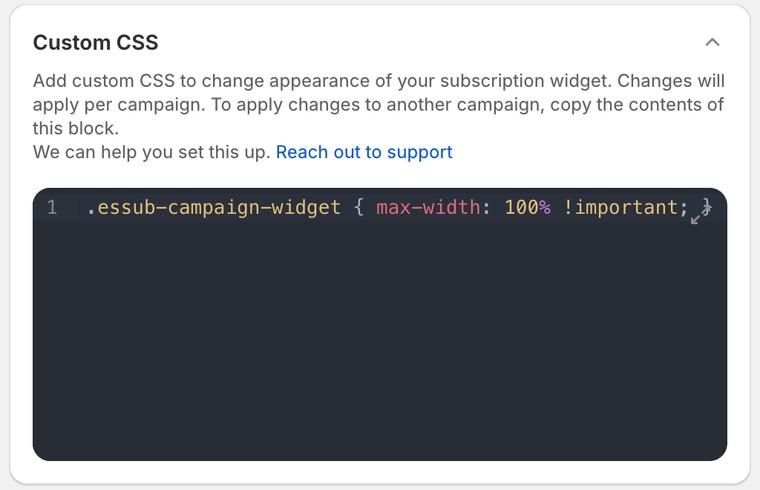
The widget copies the width of your buy buttons. On some themes it ends up narrower than the Add to cart button. To make it full width, open the campaign, go to the Widget tab, open Custom CSS, and add:
.essub-campaign-widget {
  max-width: 100% !important;
  width: 100% !important;
}
.essub-options {
  max-width: 100% !important;
}
To match your theme's corners, set Corner radius in the Widget color presets card on the Style tab. It sets the corners across the widget. If you want a different value for the Grouped dropdown only, add:
.essub-grouped__dropdown {
  border-radius: 8px !important;
}
Custom CSS is saved per campaign. Copy the block into your other campaigns if you have several. Every widget class starts with essub-.
Step 5: Still not right?
If the wording or the language is the problem rather than the position, see Widget Wording, Translations and the Subscription Details Tooltip.
Otherwise contact support from the app and send us the product page URL. The Custom positioning card has a contact support link, and so does the Home page. Themes with sticky add to cart bars or custom product forms sometimes need a small theme edit, and we can help.